Beginner guide · Automation
How to Use Zapier: Make Your Apps Work Together Automatically
Stop copying and pasting between apps. Here's what a Zap is, how tasks are counted, and how to build your first one in about 15 minutes.
Do you copy the same info from one app into another every day? Maybe a new order goes into a spreadsheet. Then you email the customer. Then you tell your team.
Zapier does those jobs for you. It connects your apps so information moves between them on its own. You don't need to write any code.
Learn 4 words first
Zapier uses a few special words. Here's what they mean.
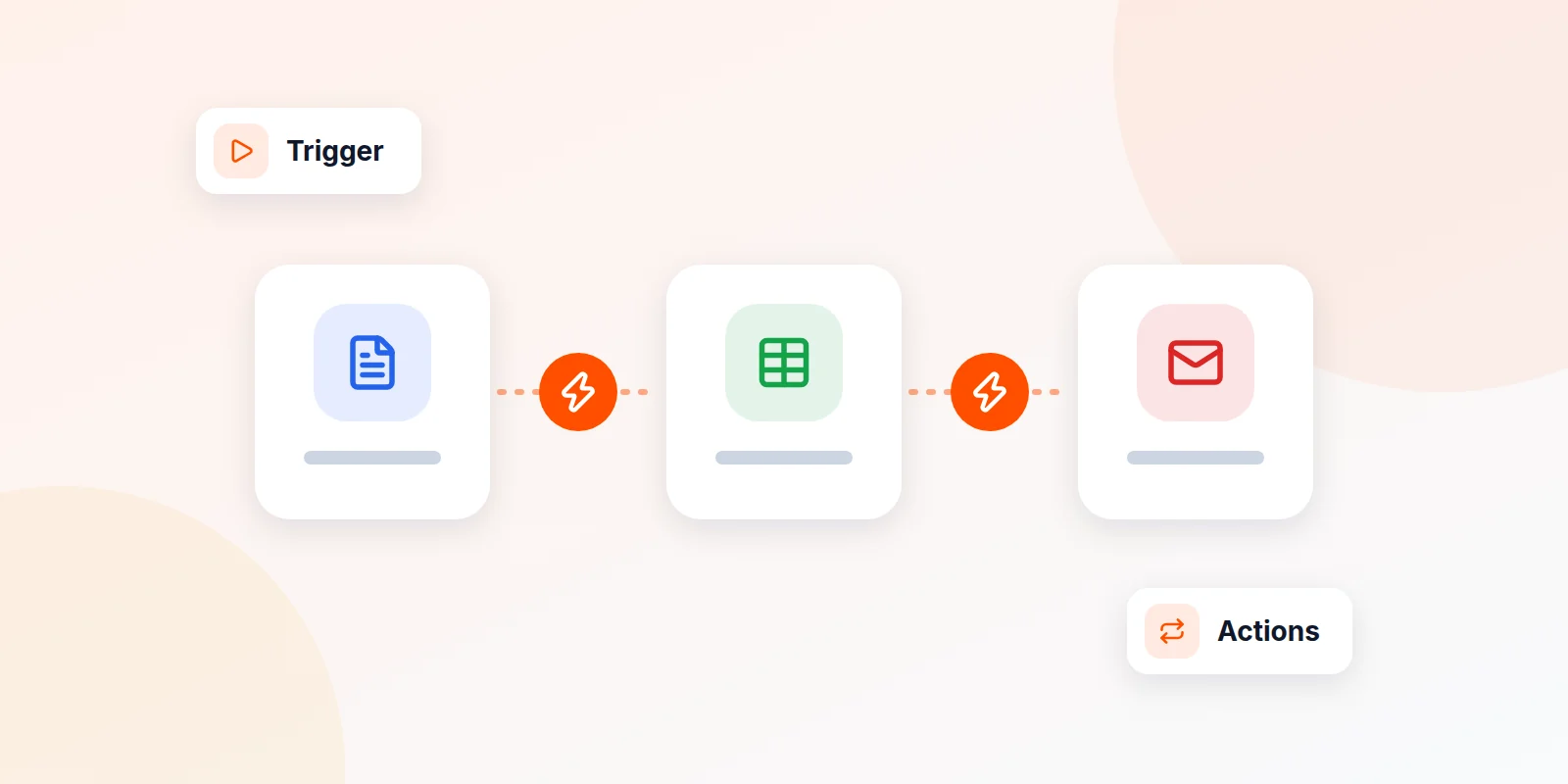
- Zap: One automation. It's a set of steps that runs on its own.
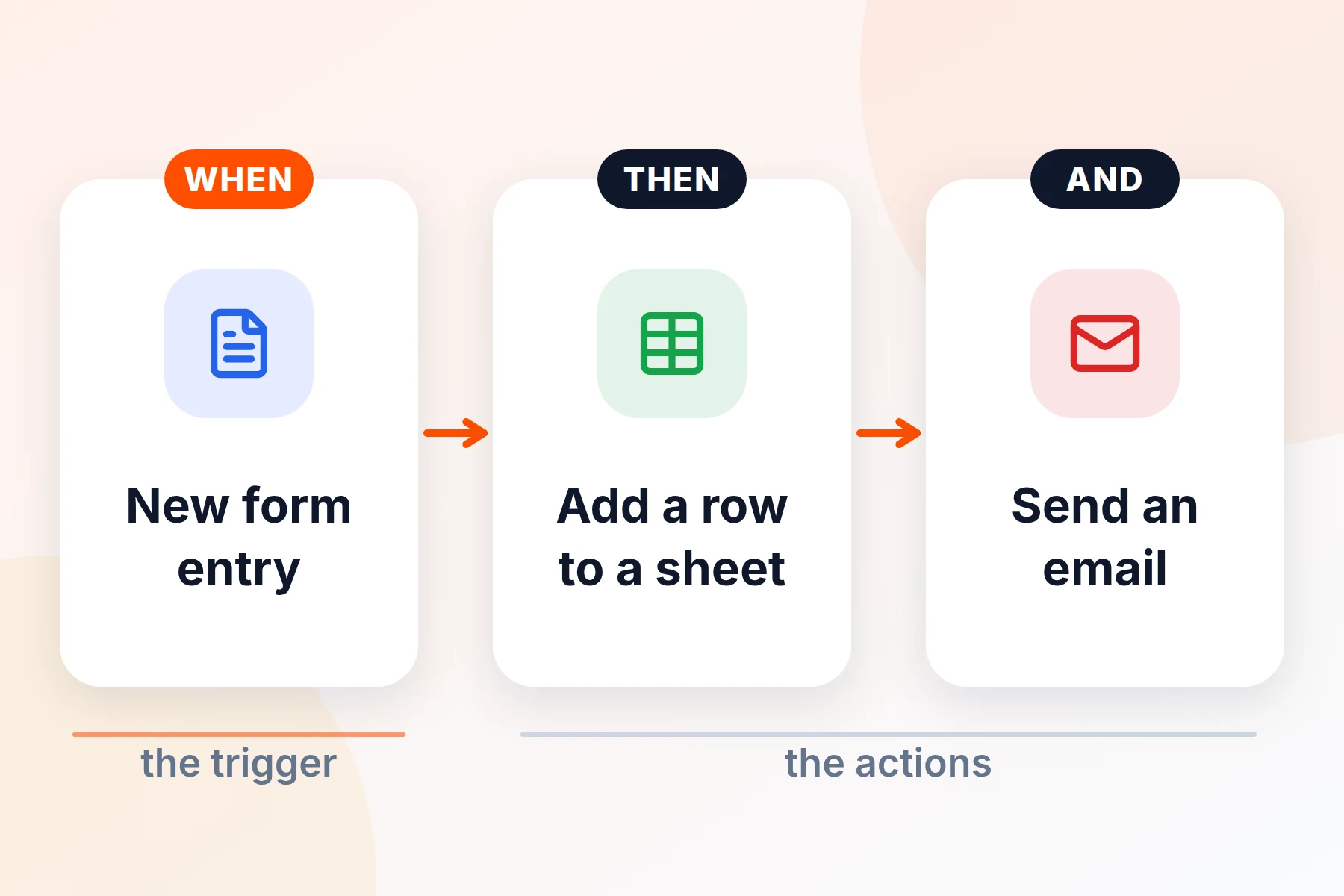
- Trigger: The event that starts a Zap. For example, "Someone fills out my form."
- Action: What happens next. For example, "Add a row to my spreadsheet."
- Task: Each action that runs counts as one task. Your plan gives you a set number of tasks each month.
Before you start
- Pick one boring job to automate. Choose something you do the same way every time.
- Have your app logins ready. Zapier will ask you to sign in to each app you connect.
- Know your free trial. New accounts get 14 days of the Professional plan for free. No card is needed.
Build your first Zap
In this example, each new Google Form answer gets added to a Google Sheet.
- Create your account. Open Zapier with the button at the end of this guide and sign up.
- Start a new Zap. In the left menu, click + Create, then Zap workflows.
- Set up the trigger. Click the Trigger step and pick Google Forms. Choose the event New Form Response. Click + Connect a new account and sign in to Google.
- Test the trigger. Open the Test tab and click Test trigger. Zapier finds a recent form answer. Pick one and click Continue with selected record.
- Set up the action. Click the Action step and pick Google Sheets. Choose Create Spreadsheet Row. Then pick your sheet.
- Match up the fields. For each column in your sheet, click the + and pick the matching form answer. For example, put "Name" from the form into the "Name" column.
- Test the action. Click Test step. Then check your sheet. A new row should be there.
- Turn it on. Click Publish in the top right corner. Your Zap is now live.
How tasks are counted
Your plan gives you a set number of tasks each month. The free plan includes 100. Here's how they add up.
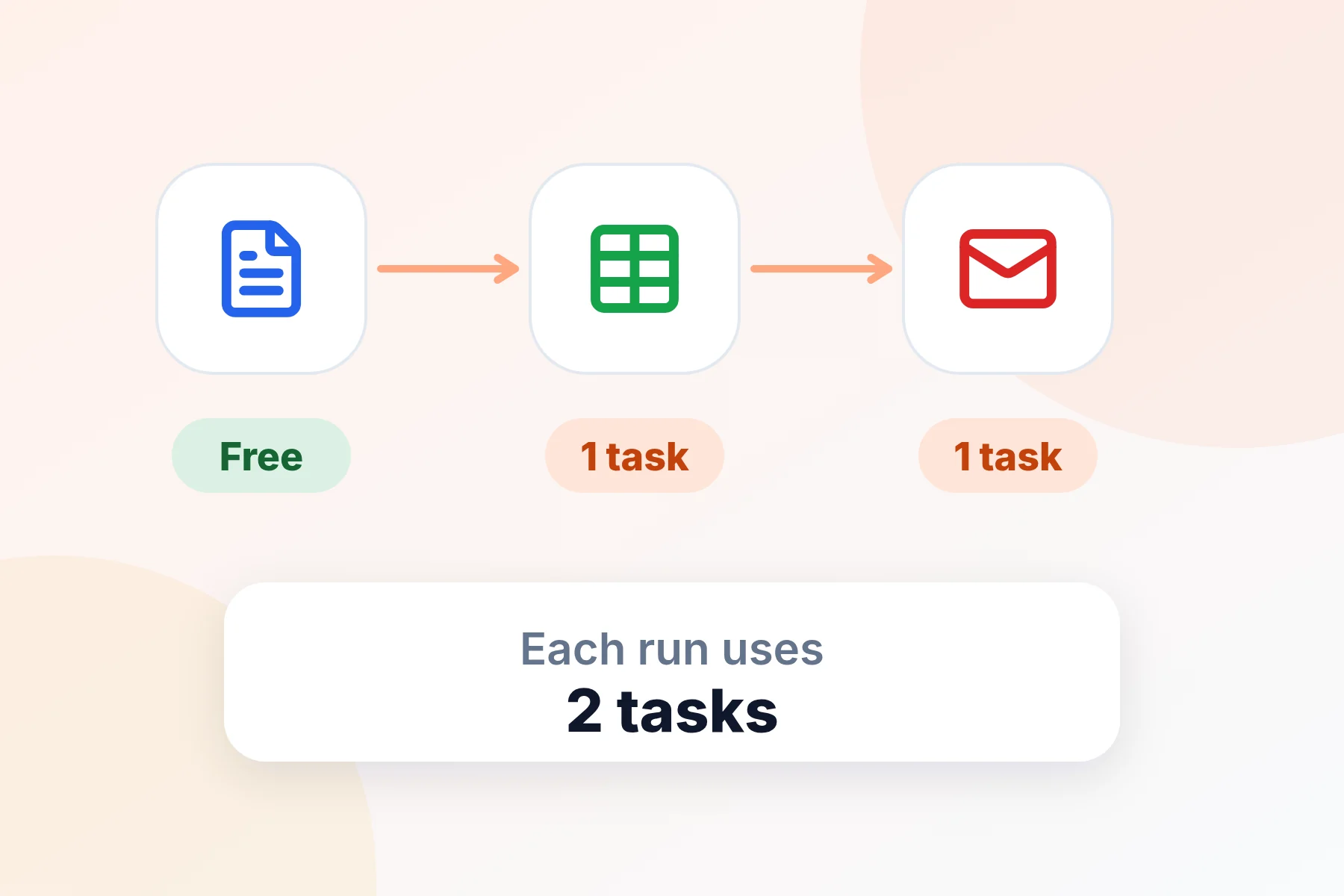
- Triggers are free. Checking for new form answers doesn't use any tasks.
- Each action is one task. A Zap with two actions uses 2 tasks every time it runs.
- Some helper steps are free. Filters, delays and formatting steps don't count as tasks.
Next steps once your first Zap works
Use a template
Templates are ready-made Zaps for common jobs. Pick one, click Try it, connect your apps and click Publish Zap.
Add a filter
A filter makes a Zap keep going only when a rule is true. For example, "only if the order is over $100." Click + between steps, choose Filter, and set your rule.
Add a delay
A delay makes a Zap wait before the next step. For example, "wait 2 days, then send a follow-up email." Click +, choose Delay, and set the time. Delays need a paid plan.
Fix a broken Zap
Open Zap history. Look for runs marked Errored. Open one and click the Troubleshoot tab for tips. After you fix it, you can run it again with Replay.
Common questions
Do I need to know how to code?
No. You build Zaps by picking apps and filling in boxes.
What's the catch with the free plan?
The free plan gives you 100 tasks a month. Each Zap can only have 2 steps: one trigger and one action. It also checks for new info every 15 minutes, not right away.
What happens if I run out of tasks?
Zapier emails you when you get close. Then your Zaps either pause until next month, or keep running at an extra cost if you turned on pay-per-task.
How fast do Zaps run?
Some triggers are instant. They show a lightning bolt. Others check for new info every 15 minutes on the free plan, every 2 minutes on Professional and every minute on Team.
Can I use AI in a Zap?
Yes, on paid plans. An AI step can sort messages, sum up text or write a draft reply as information passes through.
Ready to save some time?
Start with one small job you do every day. Build that Zap first. Then add more as you see the time you're getting back.