Beginner guide · Video
How to Make Your First Synthesia Video: Turn a Script Into a Video
Synthesia turns typed words into a video with a lifelike AI presenter, with no camera needed. Here's how to make, edit and share your first video.
Videos help people learn and buy. But filming takes a camera, good lighting and someone willing to be on screen. Then every small change means filming again.
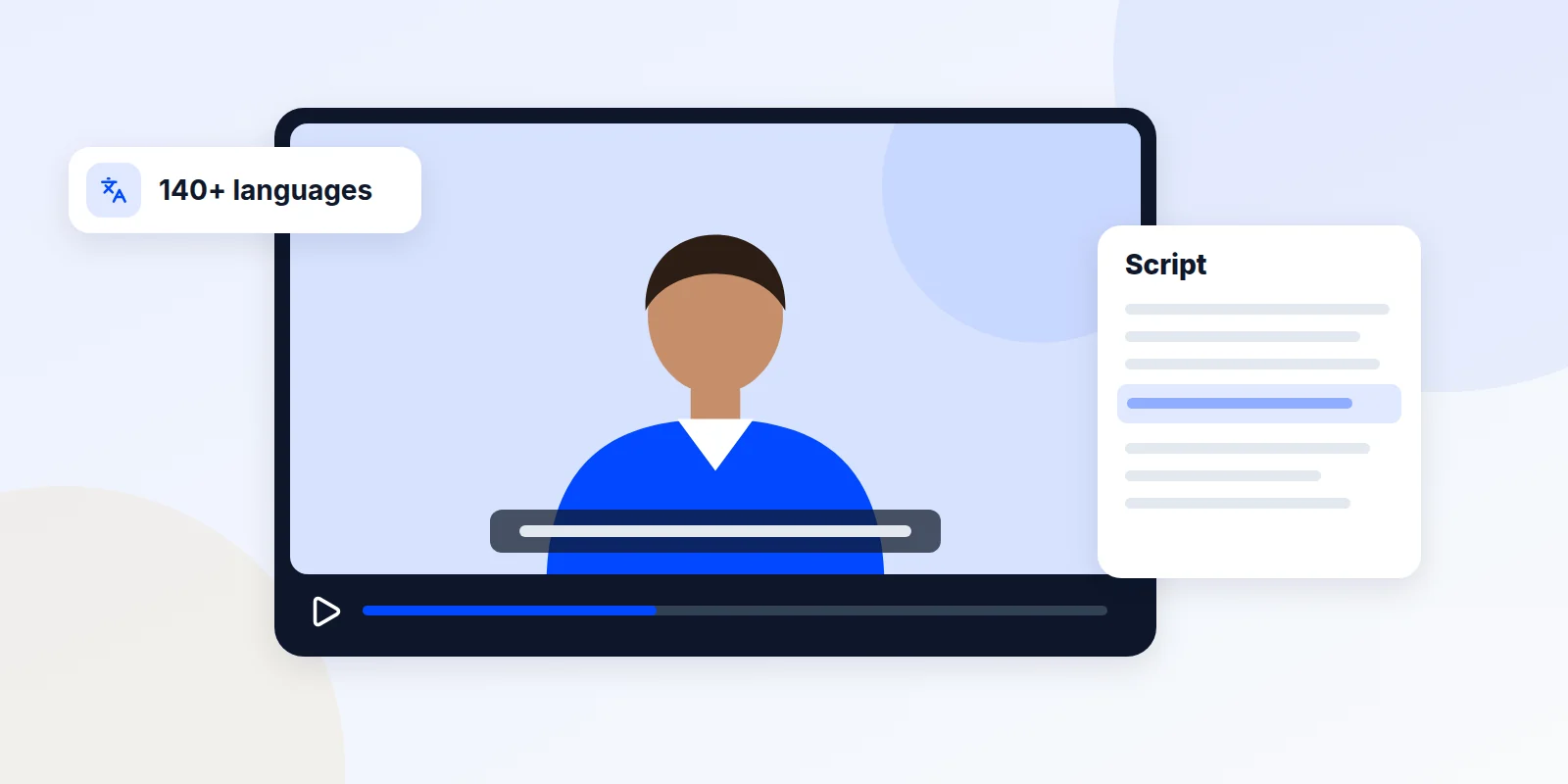
Synthesia skips all that. You type what you want to say. A lifelike AI presenter says it on screen. To change a line later, you just edit the words and make the video again.
What you can do with Synthesia
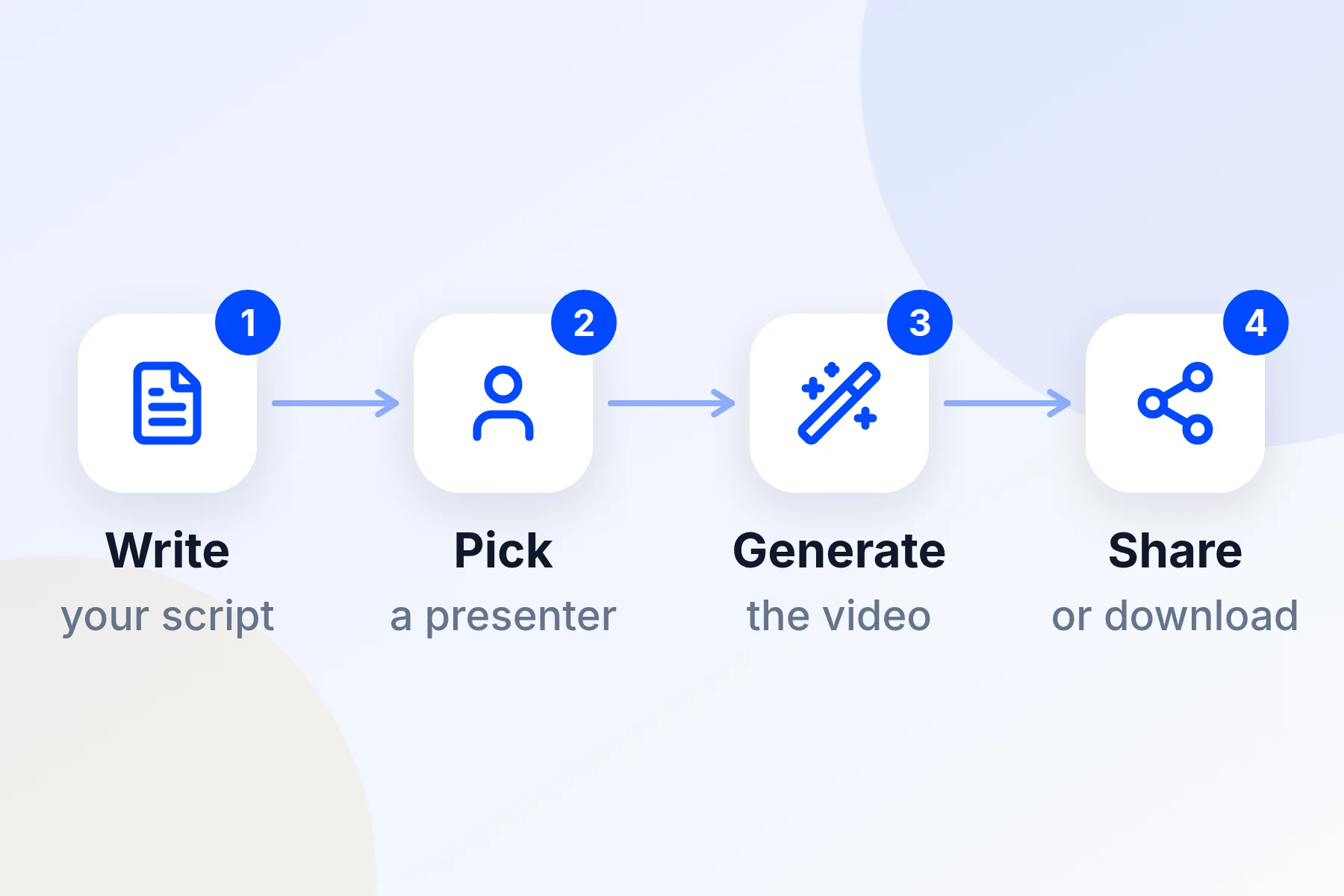
- Pick a presenter. Choose from a set of AI presenters, called avatars.
- Turn a script into a video. Type or paste your words. Synthesia does the rest.
- Speak other languages. Voices cover more than 140 languages and accents.
- Fix it fast. Change a sentence and make the video again. No filming needed.
Learn 3 words first
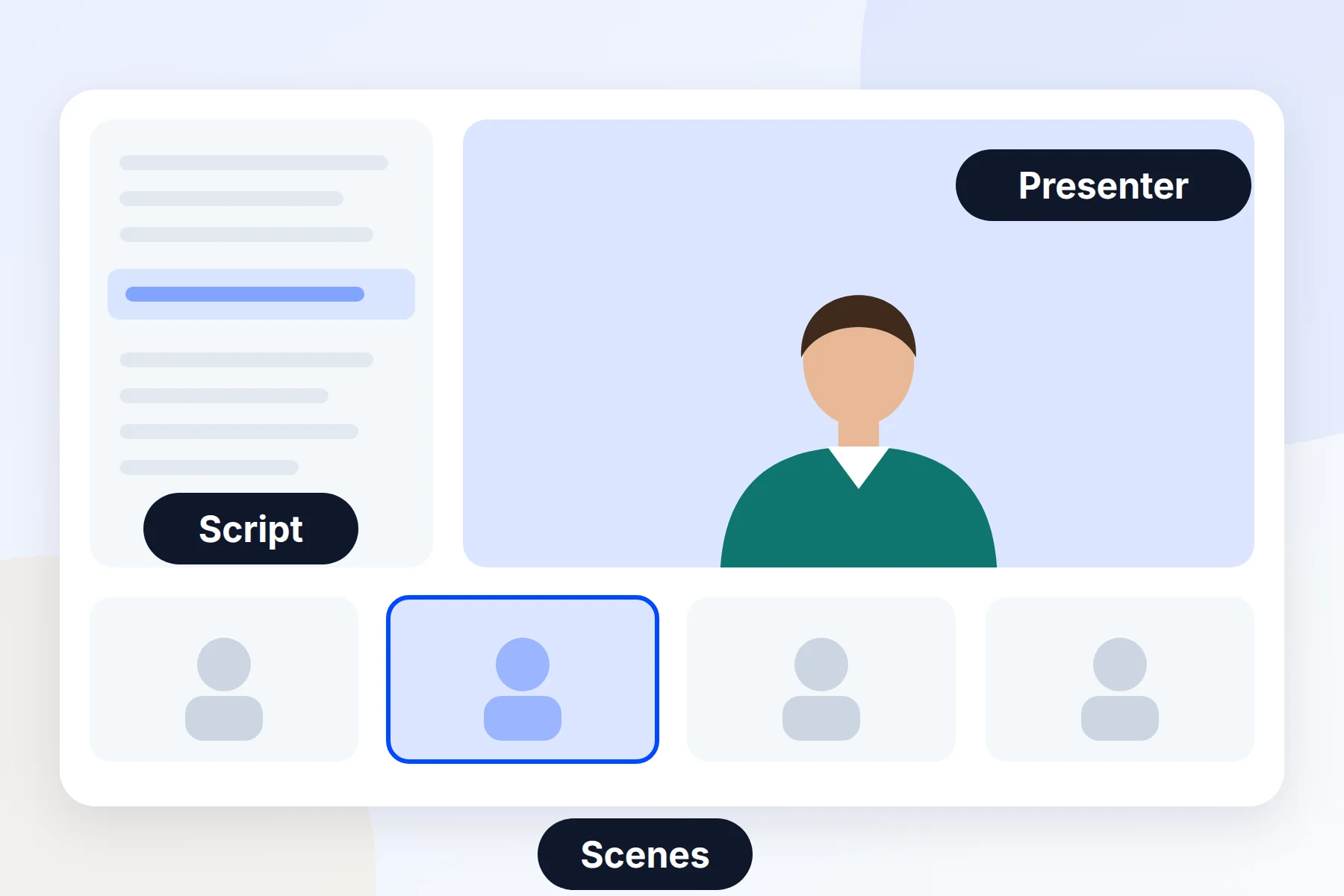
- Avatar: The AI presenter who appears on screen and speaks your words.
- Scene: One part of your video, like one slide in a slideshow. Each scene has its own words.
- Voice: The voice that reads your script. You can change it, and its speed.
Make your first video
- Create your account. Open Synthesia with the button at the end of this guide and click Get started for free. Sign in and answer a few quick questions.
- Start a new video. On your Home screen, click Create video.
- Describe your video. Type what it's about, who it's for and what you want viewers to do. You can add a file or a web link to help. Choose Short for your first try.
- Choose a style. Pick a look. Auto is a good choice to start. Then check the outline and click Continue to editor.
- Check the words. Click each scene and read the script. Fix anything that doesn't sound like you.
- Change the presenter (optional). Open the Avatar tab and pick someone else if you like.
- Preview it. Click the play button to hear it. Previews are free. The avatar won't move in the preview, but the voice will play.
- Make the video. Click Generate in the top right corner, then Generate again.
Next steps after your first video
Share or download it
To share a link, click Share, then Create link, then Copy link. To save the video file, click the video's ••• menu and choose Download. Downloads need a paid plan.
Fix how a word sounds
Some names and short forms come out wrong. Highlight the word and click Pronunciation. Type how it should sound, then click Use. Make the video again to hear the change.
Change the voice
Click the voice button in a scene. Choose Change Voice, pick a new one and click Change All. You can also make the voice a little faster or slower.
Add your logo or screen recording
Click Media, then Upload media, to add your logo or pictures. To show your screen, click Record in the top menu and pick what to share.
Mistakes to avoid
Common questions
How long does a video take to make?
It depends on how long your video is. Synthesia shows the progress, and you can keep working while it renders.
What do I get on the free plan?
When we wrote this, the free plan gave you 10 minutes of video a month and 9 presenters. Videos have a watermark, and you can't download them.
Which language can my presenter speak?
Voices come in more than 140 languages and accents. To switch, change the voice in a scene and pick a new language.
What do paid plans cost?
When we wrote this, Starter cost $29 a month and Pro cost $89 a month, with savings if you pay yearly. Synthesia changed its plans in October 2026, so check its pricing page for today's details.
Ready to make your first video?
Start on the free plan. Make one short video about something your customers ask you all the time.