Beginner guide · Notes and docs
How to Set Up Notion: One Tidy Home for Your Business Notes and Plans
Notion keeps your notes, plans, checklists and records together. Here's how pages, blocks and databases work, and how to build your first useful page.
Where do your business notes live right now? Some are in emails. Some are in Google Docs. Some are on paper. Finding the right one takes too long.
Notion gives all of it one home. Notes, plans, checklists and records sit in pages you can search. You can share them with your team in a click.
What you can do with Notion
- Write anything. Meeting notes, how-to steps, plans and ideas.
- Track lists of things. Clients, orders, content ideas or inventory, in tables you can sort.
- Build a team handbook. Put your answers in one place so new hires can find them.
- Start from a template. Use ready-made setups for plans, client lists and more.
Learn 3 words first
- Page: A blank sheet you can fill with anything. Pages can sit inside other pages, like folders.
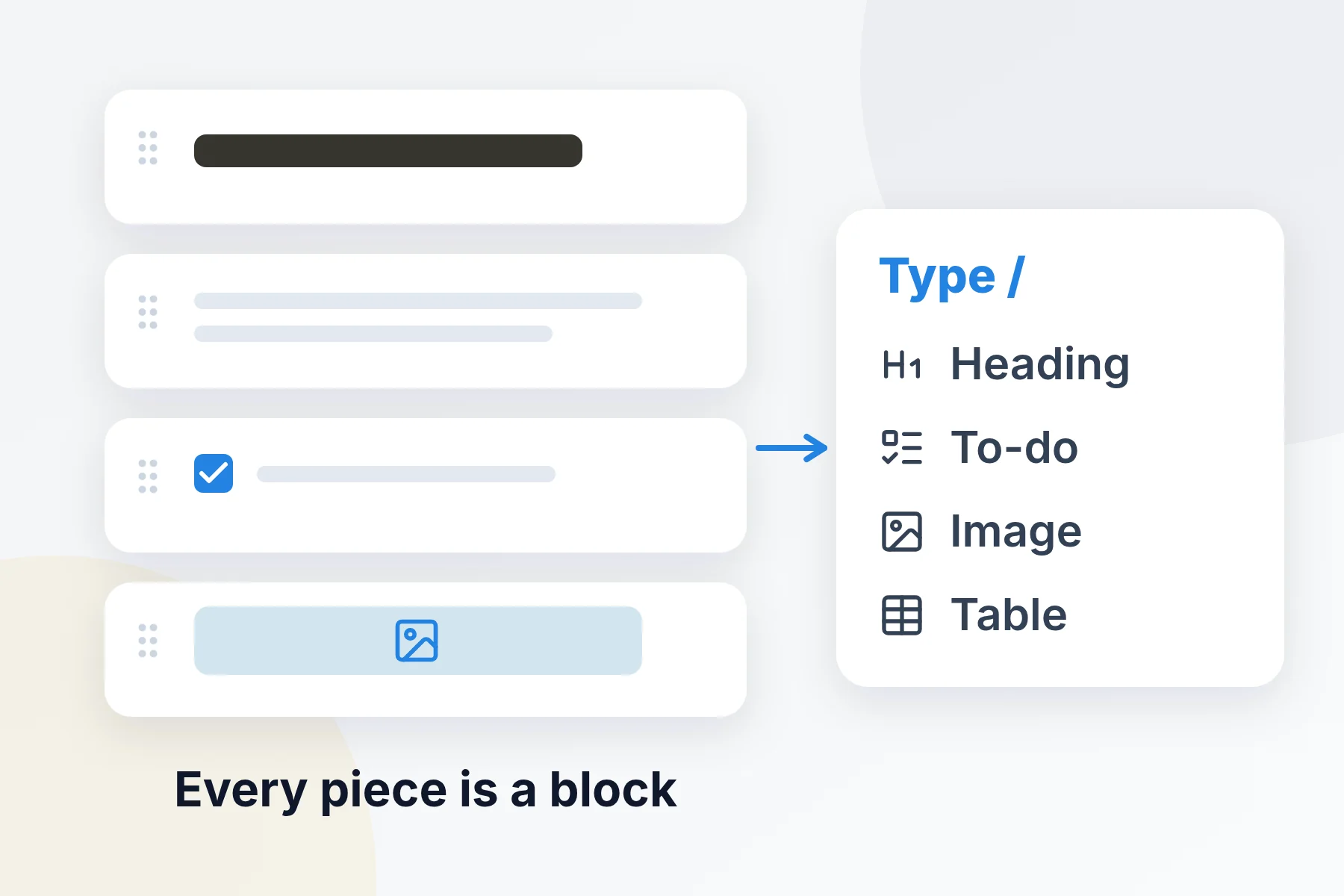
- Block: Each piece of a page. A line of text, a heading, a checkbox or a picture is one block.
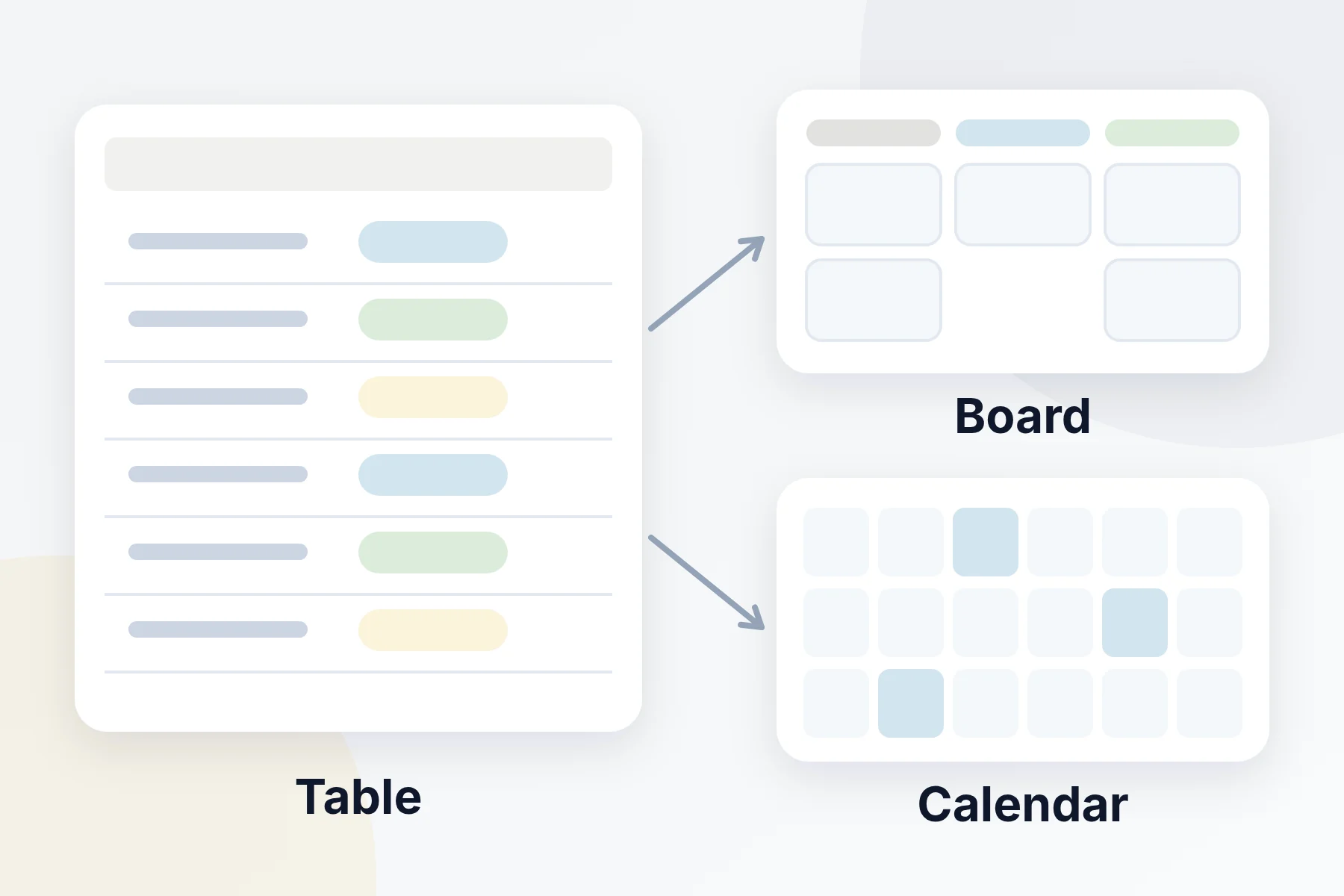
- Database: A table where every row is its own page. You can show it as a table, a board or a calendar.
Set up Notion step by step
- Create your account. Open Notion with the button at the end of this guide and click Get Notion free. Sign in with Google, Apple or Microsoft, or use your email.
- Get the app (optional). Notion works in your web browser. You can also get the free apps for your computer and phone.
- Make your first page. Click the new page icon at the top of the left sidebar. Give the page a title.
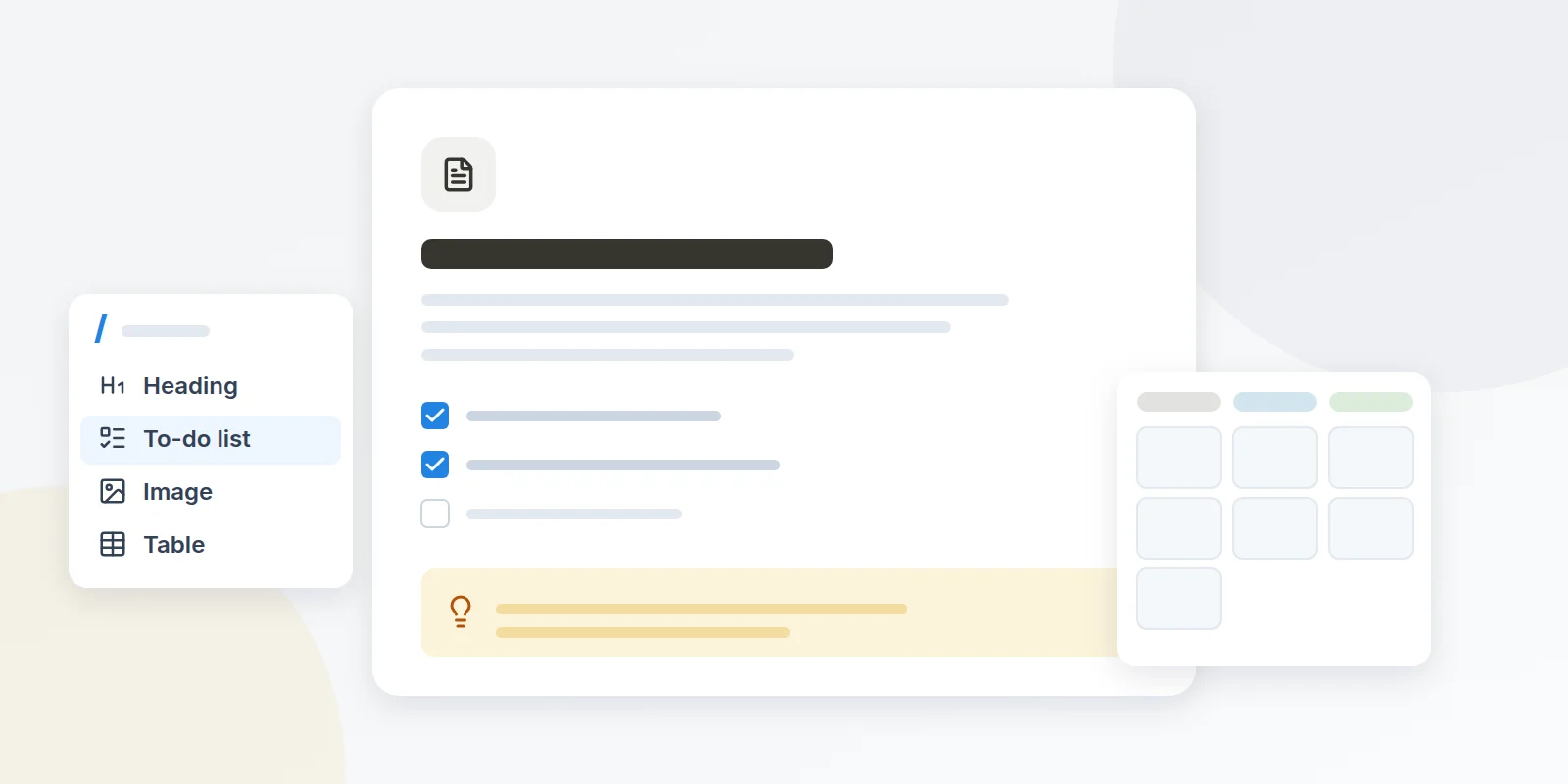
- Add some blocks. Click on a new line and type / (a forward slash). A menu pops up. Pick Heading, To-do list or anything else you need.
- Make a simple table. On a new line, type /database and pick a table. Each row is one item, like one client.
- Add columns. Click + at the end of the table to add a column, like "Phone" or "Status."
Next steps once you're set up
Show your table as a board
Click + next to your table's name and pick Board. Then group the cards by a column like "Status." Now you can drag cards from "To do" to "Done."
Use a template
Click Marketplace in the left sidebar. Find a template, like a client tracker or content calendar, and click Add. Many are free.
Invite a teammate or a guest
Open a page and click Share. Type their email, choose what they can do, and click Invite. Guests can only see the pages you share with them.
Share a page on the web
Click Share. Under General access, choose Anyone on the web with link. Then click Copy link. Anyone with the link can now view the page.
Link pages together
Type @ and start typing a page name to link to it. This helps you jump between related pages fast.
Mistakes to avoid
Common questions
Is the free plan enough for a solo owner?
Yes, for most people. You get unlimited pages and blocks when you work alone. Files you upload can be up to 5 MB each, and your page history goes back 7 days.
How is Notion different from Google Docs?
Google Docs is mainly for writing documents. Notion does that too. It also lets you build tables, checklists and boards, and link them all together.
Does Notion work offline?
Yes, in the computer and phone apps. Open a page's ••• menu and turn on Available offline. Offline mode doesn't work in a web browser.
Can I move my notes in from somewhere else?
Yes. Go to Settings, then Import. Notion can bring in Google Docs, Evernote, Word files, spreadsheets and more.
What do paid plans cost?
When we wrote this, the Plus plan cost $10 per person a month and Business cost $20, both paid yearly. Paying monthly costs a little more. Check Notion's pricing page for today's prices.
Ready to get organized?
Make one page today. Then add a second when the first one is useful.