Beginner guide · Social media messages
How to Set Up Manychat: Answer Instagram Comments and DMs Automatically
Manychat replies to comments and messages for you, day and night. Here's how to connect Instagram and set up your first comment-to-DM automation safely.
Every comment and message on your Instagram is a chance to make a sale. But answering them all, all day, isn't possible.
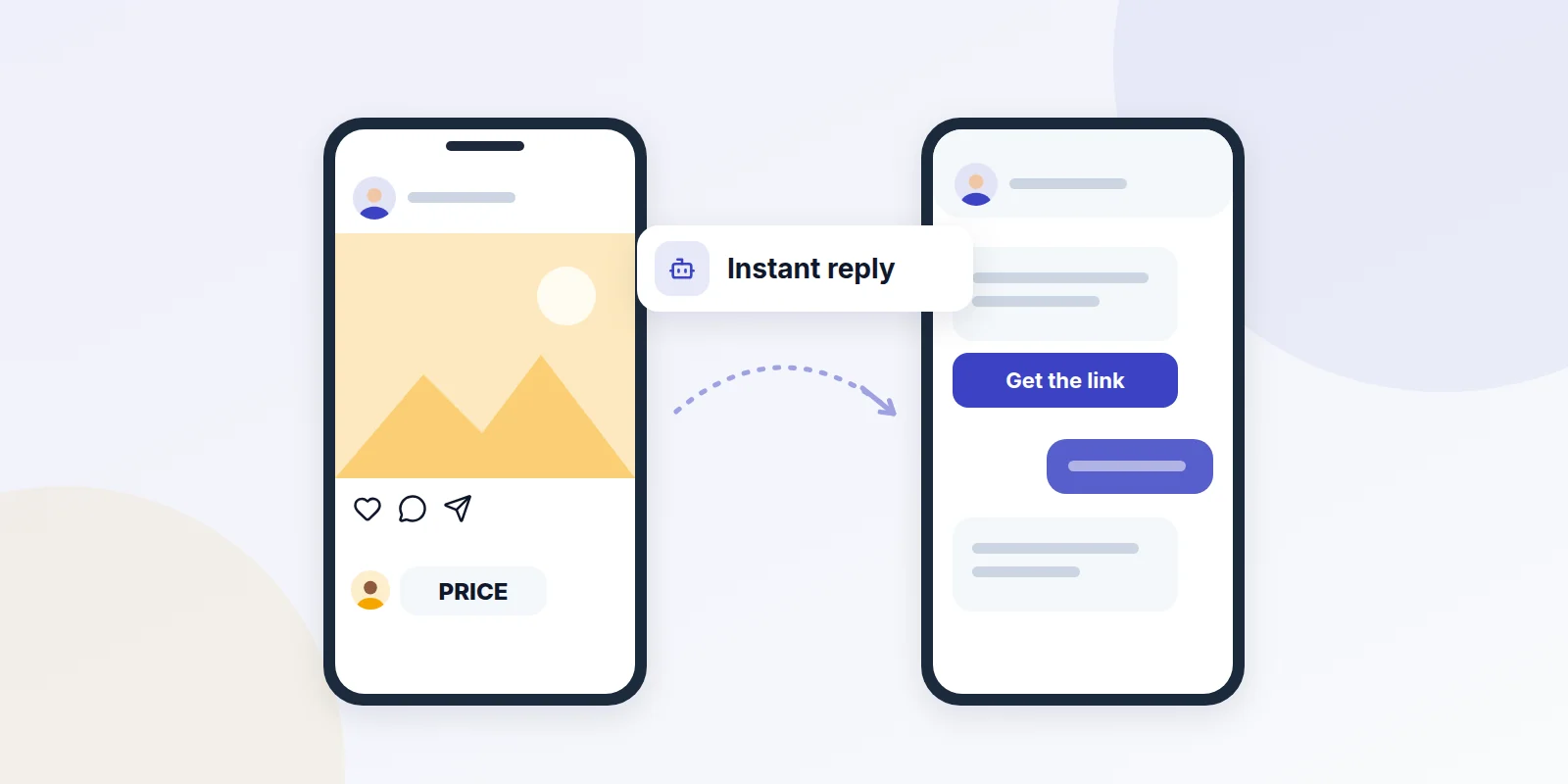
Manychat answers for you. When someone comments a word like "PRICE," Manychat sends them a private message with your link right away. It works while you sleep, and you can still jump in and reply yourself.
What you can do with Manychat
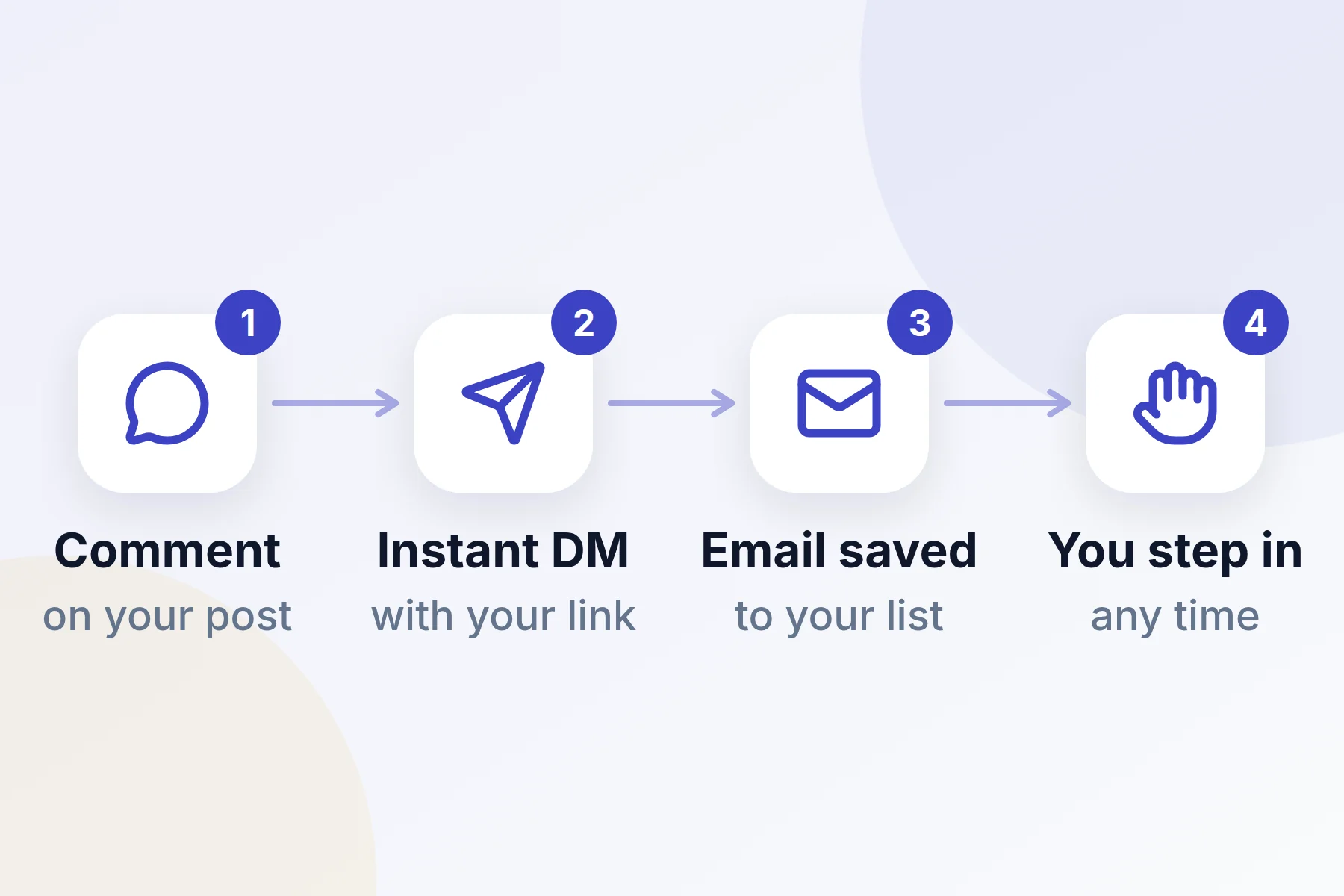
- Reply to comments. Someone comments a keyword, and they get a private message with your link.
- Answer story replies. Send an automatic reply when people respond to your stories.
- Collect emails. Ask for an email address inside the chat and save it to your list.
- Take over any time. A real person can step into any chat and reply.
Manychat works with Instagram, Facebook Messenger, WhatsApp, TikTok and text messages. This guide uses Instagram, since that's where most people start.
Before you start
- Switch Instagram to a professional account. In Instagram, choose a Creator or Business account. Both are free.
- Let Manychat see your messages. In Instagram, go to Settings and activity, then Messages and story replies, then Message controls, then Connected tools. Turn on Allow access to messages.
- Pick a keyword and a link. For example, "GUIDE" and a link to your free guide. Choose a word people won't type by accident.
Set up your first automation
- Create your account. Open Manychat with the button at the end of this guide. Sign up with your email or Google account, and confirm your email.
- Connect Instagram. In Manychat, go to Settings, then Instagram, then Connect.
- Pick a way to connect. Connect Via Instagram is the fastest and doesn't need a Facebook Page. Click Allow, then Let's start.
- Pick a ready-made automation. Go to Home, then Start Here, and choose Auto-DM links from comments.
- Choose the post. Pick one post or reel, any post, or your next post.
- Set your keyword. Type the word people should comment, like "GUIDE."
- Write your message. Write the private message people will get. Add your link. You can also add a short public reply under their comment.
- Test it, then go live. Click Preview to try it. When it works, click Go Live.
Know the 24-hour rule
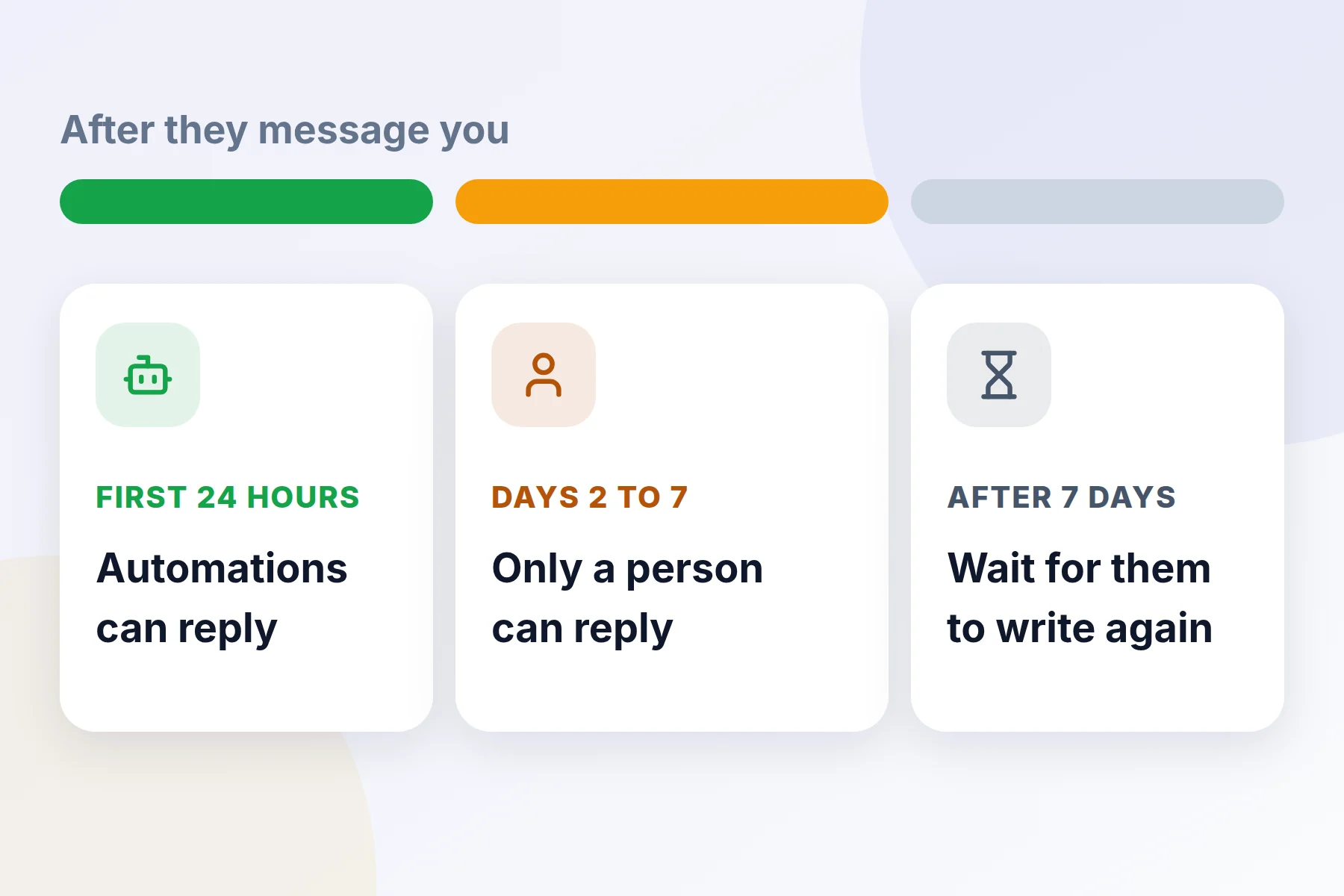
Instagram has rules about when businesses can send messages. Manychat must follow them.
- First 24 hours: After someone messages you, automations can reply.
- Days 2 to 7: Only a real person can reply, from the Manychat inbox.
- After 7 days: You have to wait until they message you again.
Next steps once it's working
Reply to story responses
Go to Automations and click + New Automation. Choose Start From Scratch. Add the trigger User replies to your Story, write your message and click Set Live.
Welcome new followers
On Home, look for Say hi to new followers. Write a short welcome message with a helpful link, then click Go Live. This feature is still in testing, so it may not be on every account yet.
Step into a chat yourself
Open the Inbox, pick a chat and assign it to yourself. Then type your reply. Manychat pauses the automation for that person for 30 minutes while you talk.
Mistakes to avoid
Common questions
Is Manychat allowed by Instagram?
Yes. Manychat is an official Meta Business Partner. Meta owns Instagram and Facebook. Still, Instagram makes its own calls, so follow the rules above.
Do I need a Facebook Page?
Not if you choose Connect Via Instagram. You only need a Facebook Page if you connect through Meta Business Suite.
Can a real person still reply?
Yes. Anyone with an inbox seat can read and answer chats. The free plan includes one seat.
What do paid plans cost?
When we wrote this, Pro cost $29 a month paid yearly, or $39 paid monthly. It included 2,500 active contacts and a 14-day free trial. Smaller and larger plans exist too. Prices change with your contact count, so check Manychat's site.
Ready to stop missing messages?
Start with one post and one keyword. Watch how people respond, then add more automations.